Forecasting & Goals
Prerak brings together three related but distinct things: forecasts (what you expect to close), quotas (targets for reps and teams), and goals (tracked outcomes across revenue, deals, meetings, and service).
Where to find it
- Forecasting and quotas live under Deals reports (the sidebar link to
/deals/reports), on the Forecast and Quota tabs. - Revenue goals live under Reports → Goals.
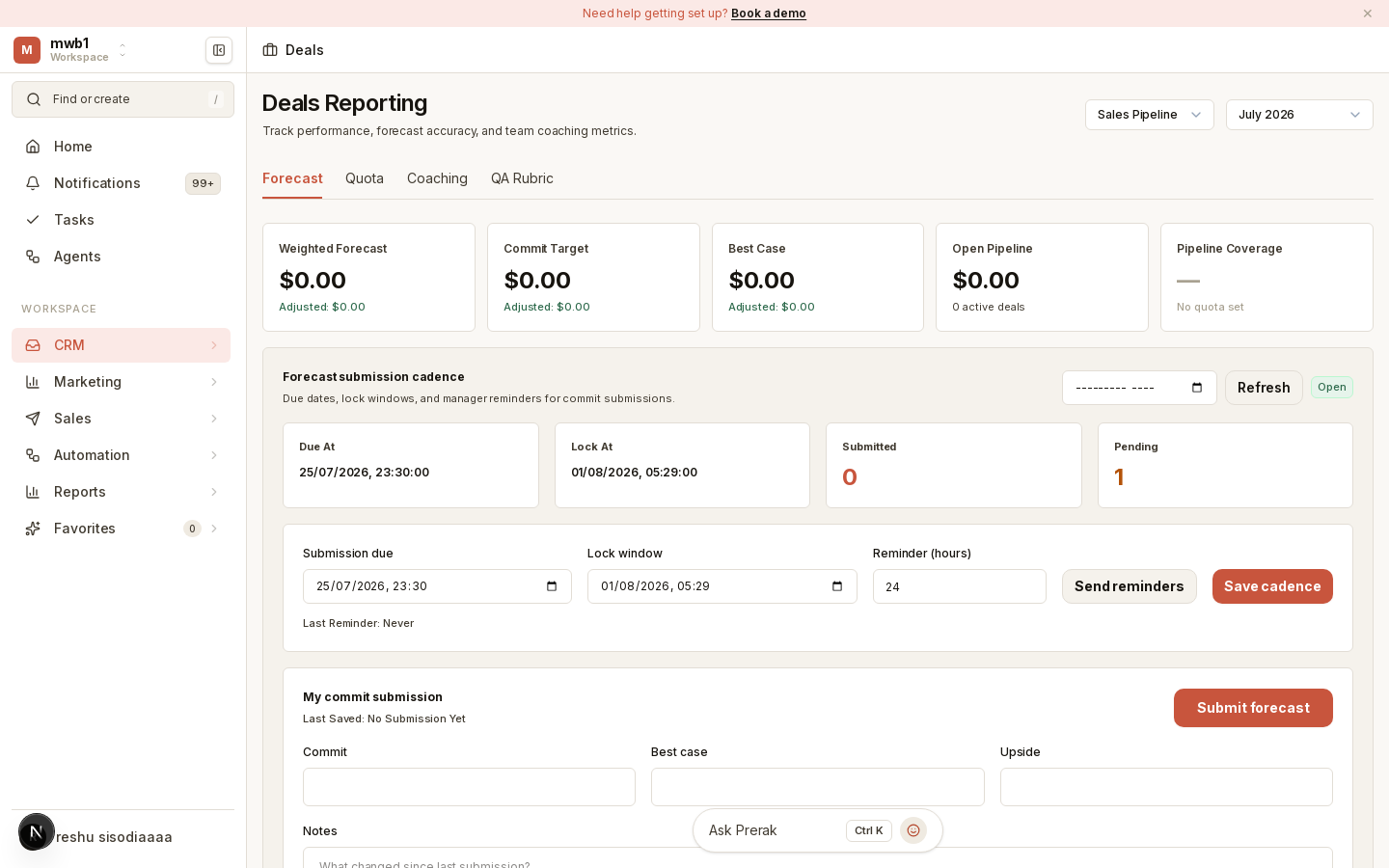
Forecasting
The Forecast tab summarizes your pipeline with KPI tiles for weighted forecast, commit target, best case, open pipeline, and pipeline coverage (open pipeline against quota). Each includes an adjusted variant so you can reflect judgment on top of the raw numbers.
Submitting your commit
Reps submit a forecast from the My commit submission block: enter your commit, best case, and upside figures, add a note about what changed, and submit. Managers see all reps' submissions rolled up in a table.
Submission cadence
Managers can set a submission cadence — a due date, a lock window, and reminder timing — so commits come in on schedule. Once the lock window passes, submissions are locked. Managers can send reminders to teammates who haven't submitted.
Scenario snapshots
Capture snapshots of a scenario (base, commit, or upside) to compare forecast variance over time. The snapshots table shows how weighted and commit figures have shifted between captures.
Quotas
The Quota tab is where you set targets and track attainment. Create a quota at workspace, team, or user (rep) scope, tie it to a pipeline (or all pipelines) and a period, and set the target amount. The KPI tiles show quota target, closed-won actual, attainment percentage, and remaining amount, with per-scope attainment badges.
Goals
Goals track attainment for outcomes beyond revenue.
Where to find it: Reports → Goals.
- Create a goal for a metric (revenue, deals won, meetings completed, tickets resolved, or a custom metric) at workspace, team, or user scope, over a monthly or quarterly period.
- The goal list shows target, actual, attainment, and a pace badge (on track / at risk / off track).
- Select a goal to see its attainment trend across recent periods and its audit activity.
- Goals move through Draft → Active → Archived rather than being deleted.
Tip: Use Recompute snapshots on the Goals page to refresh attainment after a burst of activity, rather than waiting for the next scheduled update.