Pipelines & Deals
Deals are the opportunities you're working to close, organized into pipeline stages. The Deals area is where you move deals forward, track their health, and keep your pipeline clean.
Where to find it
Open Deals from the sidebar for the pipeline board, or Deals reports for forecasting and analytics (see Forecasting & Goals).
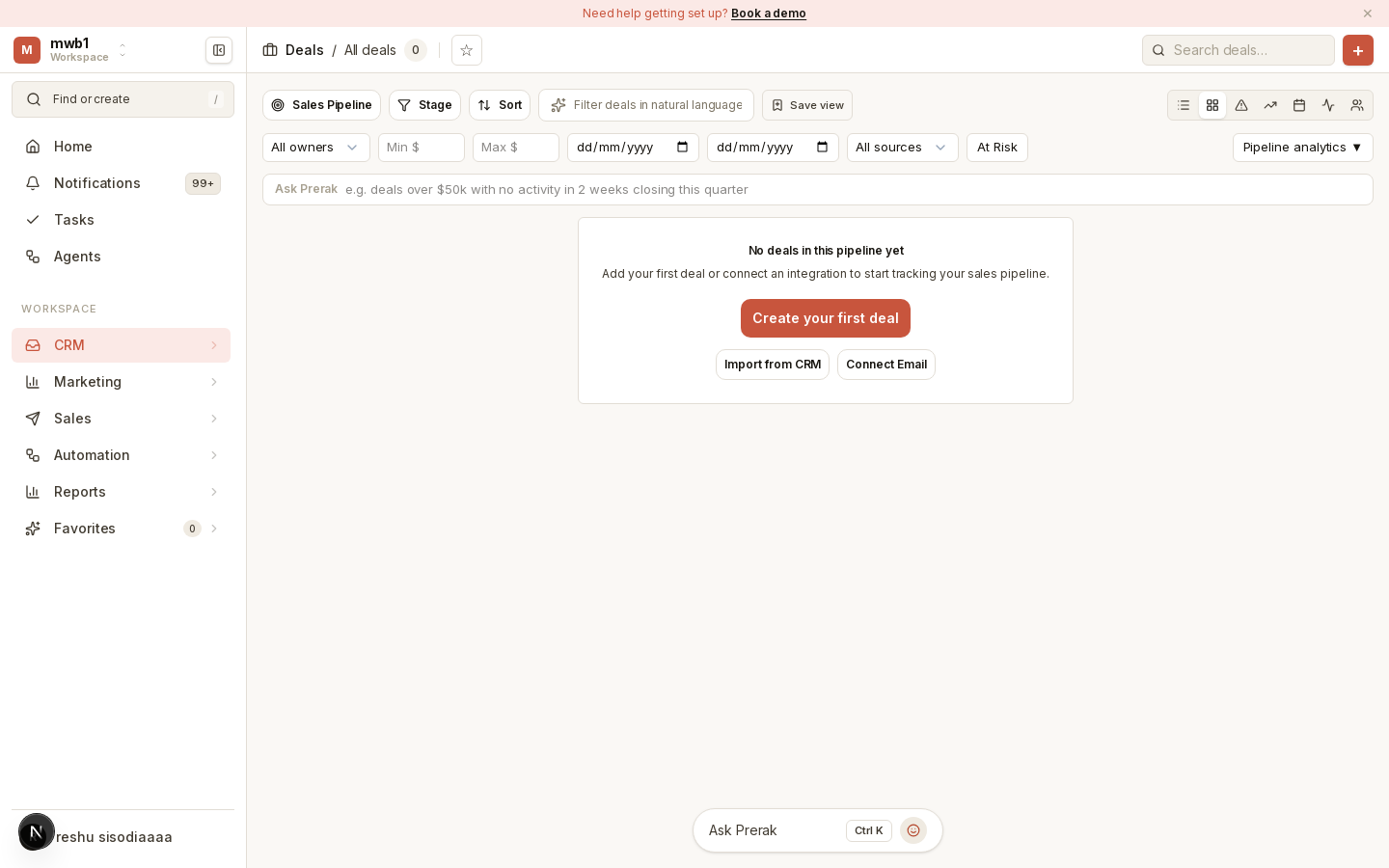
The pipeline board
The board shows your deals as cards grouped into stage columns. You can switch between several views — including Kanban, Table, Forecast timeline, Calendar, and a workload view — using the view switcher.
To work the board:
- Pick a pipeline with the pipeline selector, and filter by stage, owner, amount, close date, source, or label.
- Sort by recently created, amount, probability, or name.
- Move a deal by dragging its card to another stage. Prerak runs a few guardrails as you do (see below).
- Save a view of your current filters to reuse it later, and star a view to keep it in your favorites.
Tip: Use the "Ask Prerak" query bar on the board to find deals in plain language — for example, "deals over $50k with no activity in two weeks closing this quarter."
Creating a deal
Use Add Deal to create an opportunity. The form captures the deal name, pipeline and stage, amount and close date, forecast category, owner, source, associated companies and contacts, and line items. Fields that a stage requires are marked, so you can't advance a deal without the information that stage needs.
Moving deals between stages
Dragging a deal triggers stage-aware prompts:
- Moving to a Closed Lost stage lets you record an optional loss reason.
- Moving to a stage with required fields prompts you to fill them before the move completes.
- After moving to an open stage, Prerak offers to schedule your next activity so momentum doesn't stall.
- Pipelines can enforce sequential progression, which blocks skipping stages.
The deal record
Opening a deal shows everything about it in one place: metric chips (amount, weighted value, close date, score), and tabs for Overview, Activity, Timeline, Quotes, Line Items, Emails, Meetings, and Notes.

The right sidebar holds pipeline-hygiene fields (amount, stage, owner, close date, forecast category, next step, risk level, labels) alongside AI & Intelligence panels — stage coaching, deal health, and next-best-action recommendations — and the deal's associations, approvals, and custom properties.
Bulk actions
Select multiple deals on the board to edit them together, apply a playbook, create follow-up tasks, or delete them.
Configuring pipelines
Admins configure pipelines in Settings → Deals, across tabs for Pipelines, Approval rules, Automations, Products, Labels, and Handoff. There you define stages and probabilities, add stage guidance for reps, set approval rules, automate stage transitions, and configure post-sale handoff.